
SS VCA Assembly Guide
Damaged or Missing Parts All kits and parts are checked before being shipped to you. If something arrives damaged or if your kit is missing a part, please open a support ticket to inquire about a replacement. Missing parts will be replaced at our expense. Damaged parts should be returned for verification. If the part shows signs of use beyond what was necessary to determine that it was damaged, DIY Recording Equipment, LLC reserves the right not to replace the part.
Table of contents
- Required Tools
- Optional Tools
- Component Sorting Sheet
- Standoffs, Header, and IC Socket (Bag 1)
- Insert Standoffs
- Populate 8-Pin Header
- Tape and Solder IC Sockets
- Resistors (Bag 2)
- Sort Resistors
- Bend Resistors
- Place Resistors
- Solder Resistors
- Trim Resistors
- Place and Solder Vertical Resistors
- Other Passive Components (Bag 3)
- Populate Diode
- Populate Small Capacitors
- Populate Tantalum Capacitor
- Populate Switches
- Populate Trimpot
- Populate Large Capacitors
- ICs (Bag 4)
- Populate VCA
- Place ICs in Sockets
- Final Checks
- Calibration
- Set Up for Testing
- Check Unity Gain
- Calibrate Gain
- Finished!
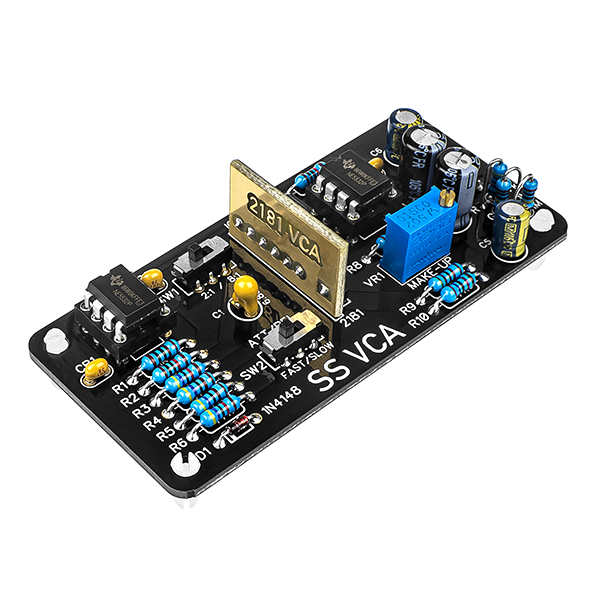
Thank you for purchasing a SS VCA
If this is your first DIY project ever, we recommend reading our Getting Started Guide.
Required Tools top
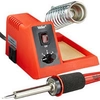
Soldering Iron
We recommend an adjustable-temperature station. The smaller, pencil-style ones that plug directly into the wall do not have enough power to create good joints consistently.
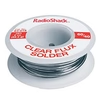
Solder
You can use 60/40 "leaded" solder or lead-free. We recommend 60/40 because it is easier and more forgiving to use.
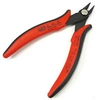
Wire Cutters
A good pair will be sharp and have a fine point for cutting leads down right at the solder joint. Don't use a set of large cutters meant for household wiring.
Flat Head Screwdriver
A small flat head screwdriver for adjusting a trimpot.
Optional Tools top
Multi-meter
If you run into problems, a multimeter can come in handy. You can also use it to sort resistors.
Desoldering Pump
If you accidentally solder something in the wrong place, a desoldering pump can save the day.
Component Sorting Sheet top

To identify and keep track of every part in the kit, download and print the Component Sorting Sheet (PDF).
Standoffs, Header, and IC Socket (Bag 1) top
Insert Standoffs top
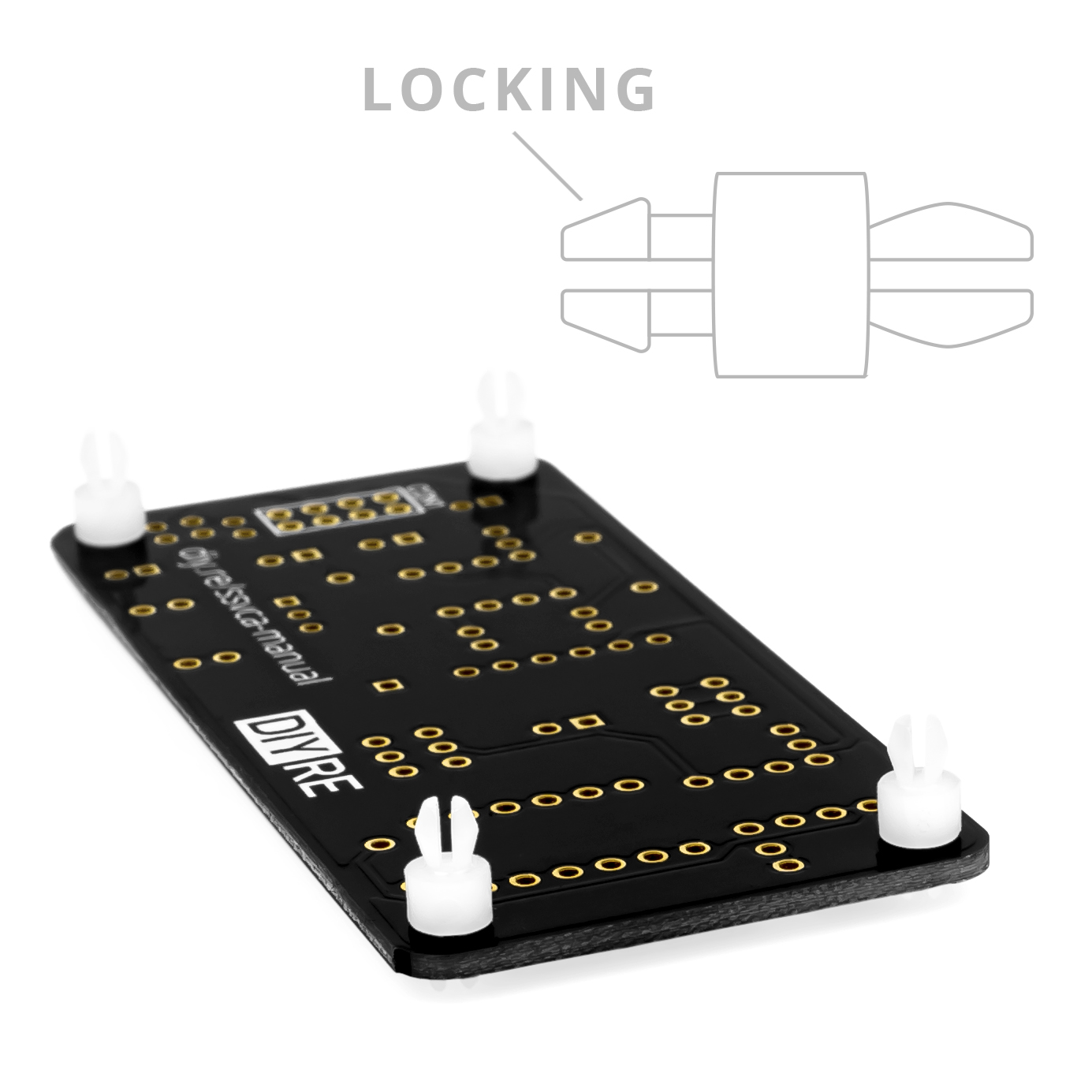
Note that there are two different ends on the plastic standoffs. The locking end has tabs with a right angle to prevent them from being removed after installation, while the non-locking end has smooth tabs. Insert the locking ends of the standoffs from the bottom of the PCB.

Populate 8-Pin Header top
Insert the 8-pin header into the holes marked “CON1.” Make sure to place the short, silver pins through the bottom of the PCB so that the PCB rests on the black plastic posts. Solder the header from the top of the PCB and do not trim the leads afterward.

Tape and Solder IC Sockets top
Insert the IC sockets so that the notches on the sockets align with the markings on the PCB. Secure in place with tape. Then flip the PCB over and solder in place. Remove the tape.
Resistors (Bag 2) top
Sort Resistors top
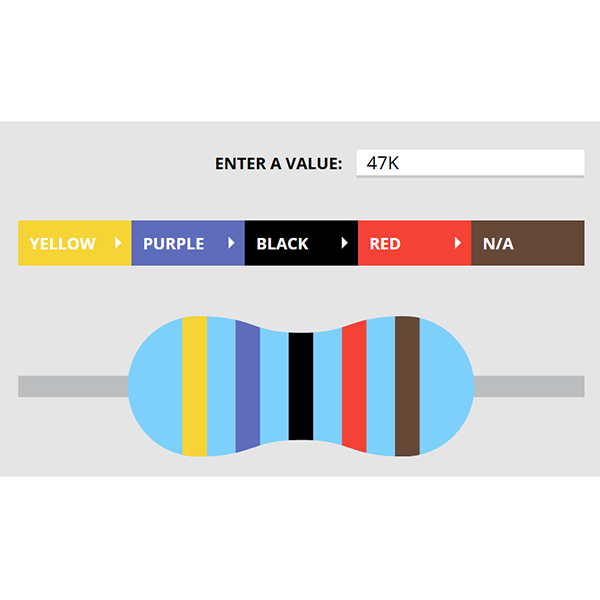
Resistor values are identified by colored bands on the body of the resistor. To sort resistors, use our Resistor Color Code Calculator or test them with a multi-meter set to read resistance. (Pro tip: to measure resistors quickly you can remove the probes from your multi-meter and place the leads of the resistor directly in the probe sockets.)

Bend Resistors top
Identify the resistors for the R, G, and B positions and set them aside. Do not bend them in this step. For the remaining resistors, bend the leads 90 degrees at the body so they can be inserted into the PCB.

Place Resistors top
Place the resistors (except for R, G, and B) into their respective positions on the PCB. As you place each resistor, bend its leads against the bottom of the PCB so that it stays in place during soldering.

Solder Resistors top
Solder the resistors to the PCB. Observe good soldering technique: heat the pad and lead for 2-3 seconds, apply a small bit of solder, and continue to heat the pad for another 2-3 seconds. The finished joints should be shiny and should have just enough solder to cover the pad entirely.

Trim Resistors top
Use clippers to trim away the excess leads. Clip as closely as possible to the joint without clipping the joint itself.

Place and Solder Vertical Resistors top
For the remaining resistors (R, G, and B), bend one lead 180 degrees so it is parallel with the body of the resistor. Leave the other lead straight. Then place the resistors so that the straight lead of each goes through the circled pad. Solder and trim.
Other Passive Components (Bag 3) top
Populate Diode top
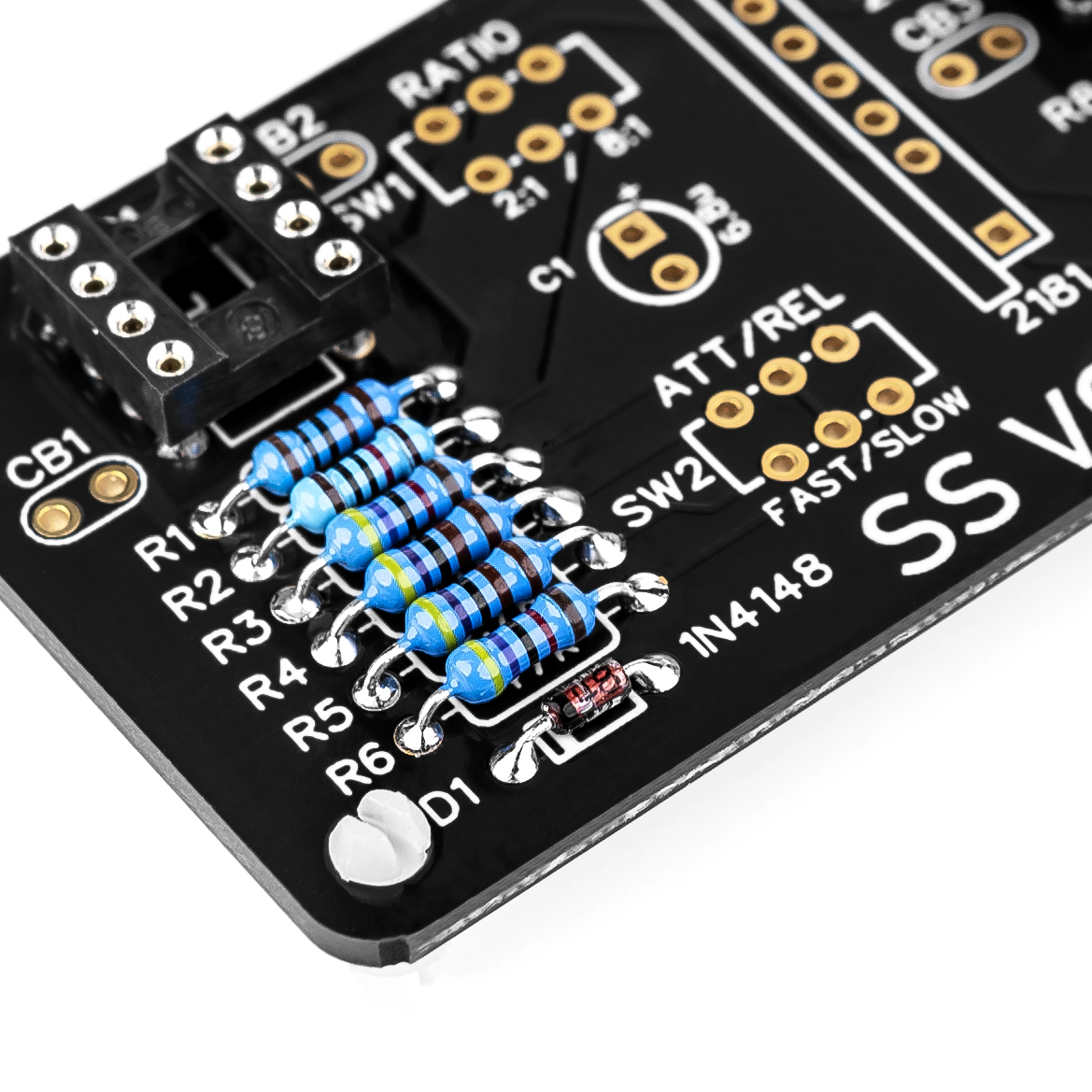
Place the diode so that the line on the component matches the line on the PCB. Double check the orientation, then solder and trim.
Populate Small Capacitors top
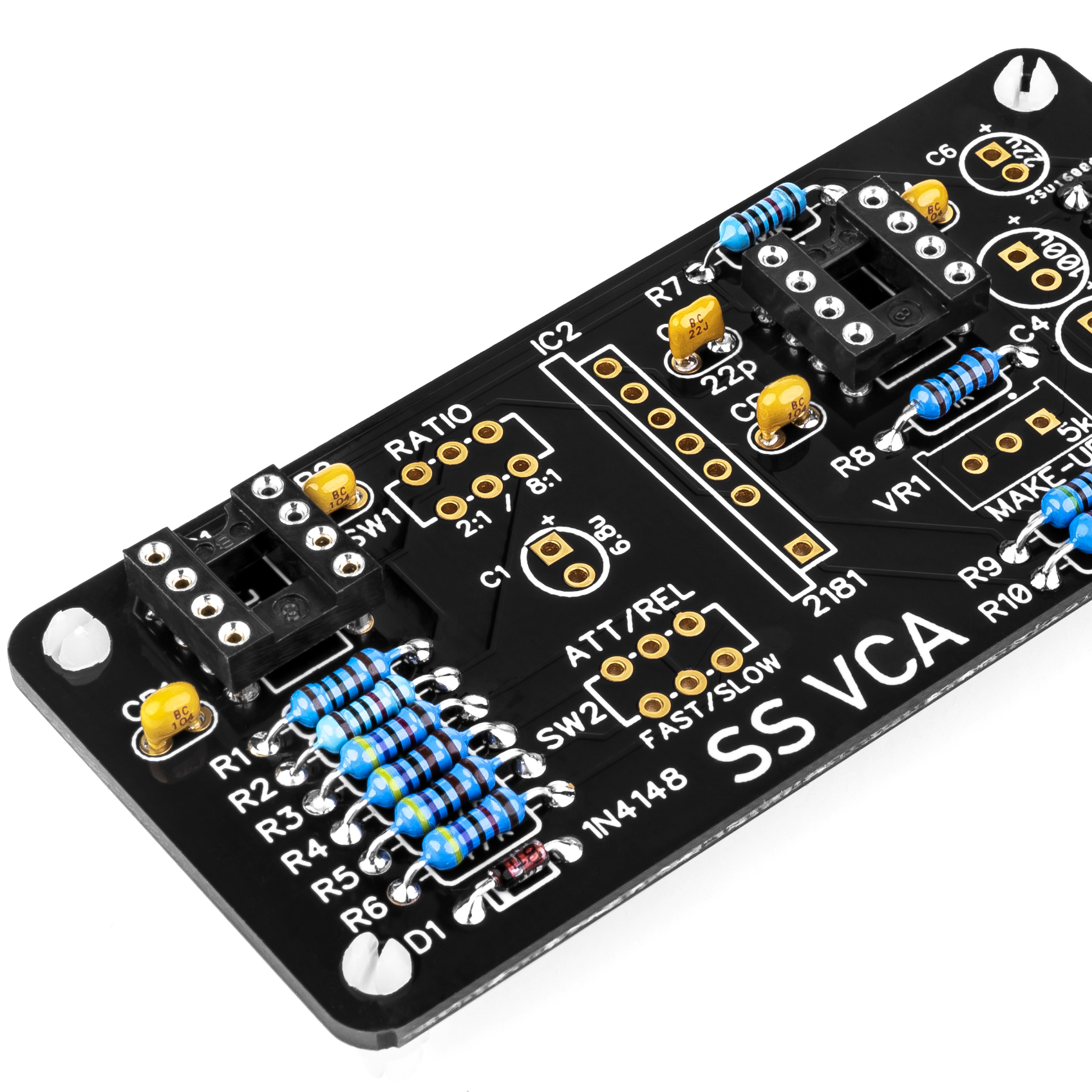
Place the smaller capacitors in their respective places. These capacitors are not polarized and therefore can be placed in either direction. Solder then trim the leads.

Populate Tantalum Capacitor top
The larger, yellow capacitor is tantalum. This are polarized, so it must be placed in a certain direction. The positive lead is slightly longer and marked with a "+" symbol. Align this lead with the "+" on the PCB. Double check the orientation, then solder and trim.

Populate Switches top
Place the slide switches and use a small screwdriver to bend a couple of the leads against the bottom of the PCB. Solder and trim.
Populate Trimpot top
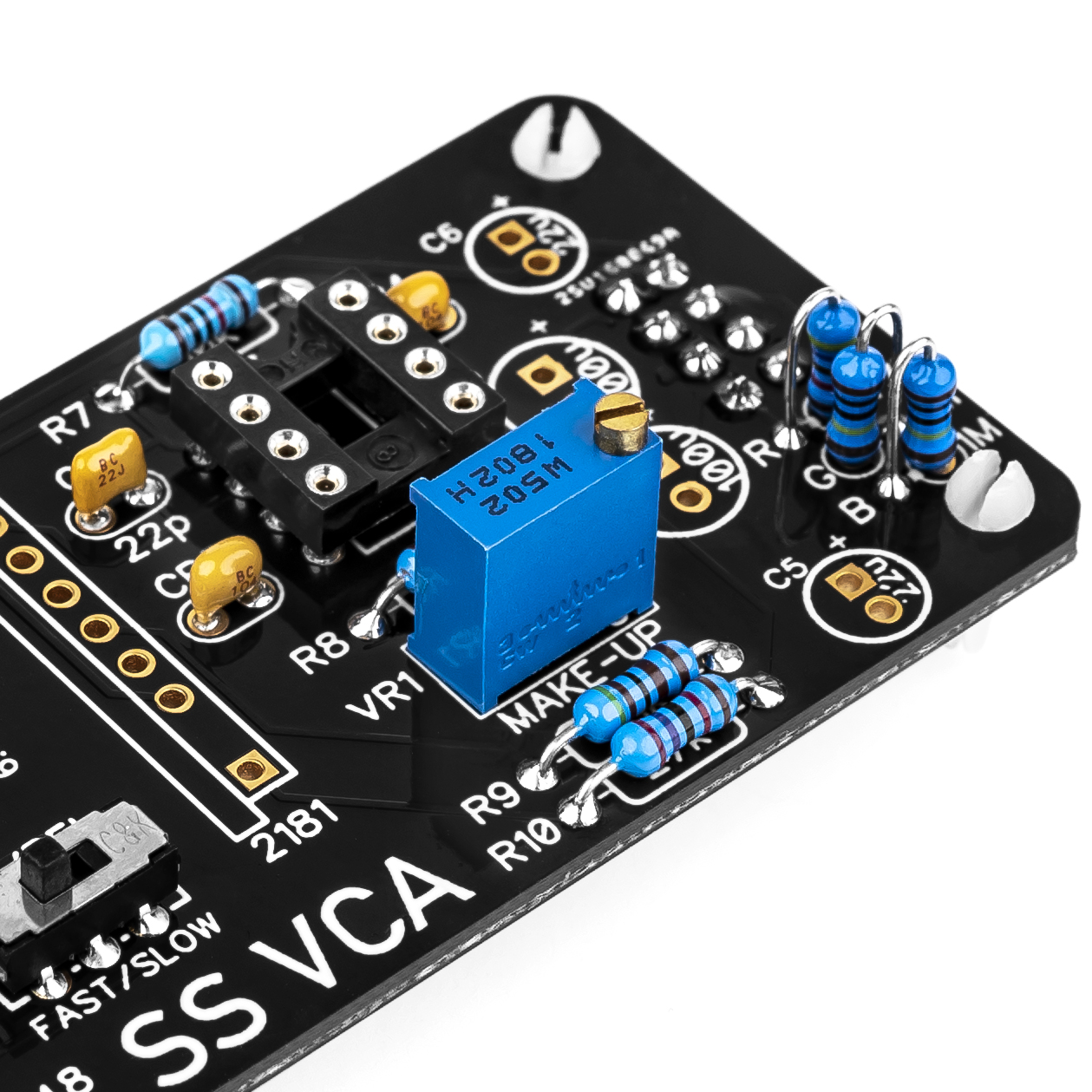
Populate the trimpot in the orientation marked on the PCB. Leave the trimmer alone for right now, we will set it in another step.
Populate Large Capacitors top
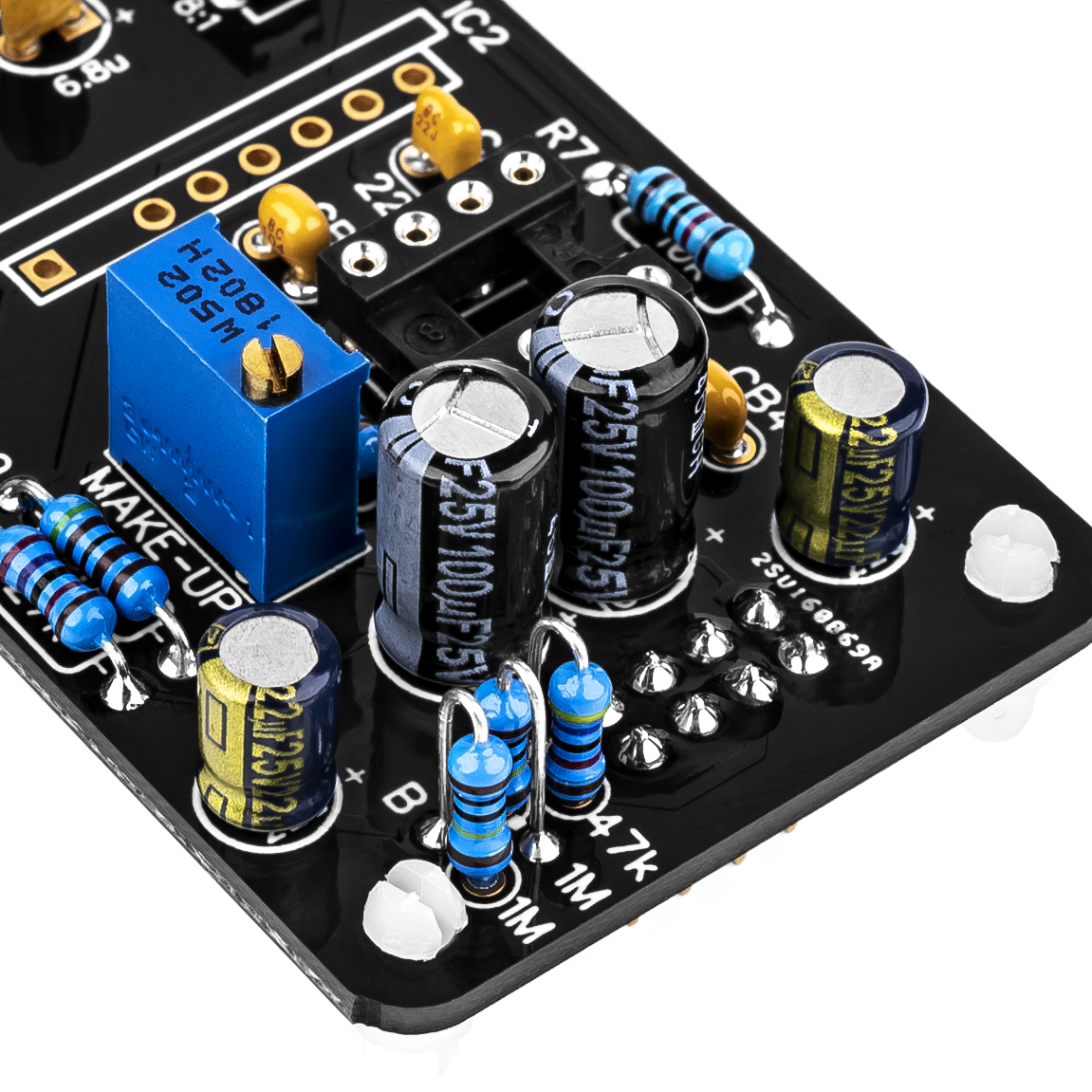
These capacitors are polarized, so they must be placed in a certain direction. The positive lead is slightly longer, while the negative lead is marked with a stripe on the body of the capacitor. Place the capacitors with the positive lead in the pad next to the "+" marking on the PCB. Double check their orientation, then solder and trim.
ICs (Bag 4) top

Populate VCA top
Place the right-angle side of the 7-pin connectors through the VCA sub-board from the front and solder it so that the sides of the black plastic post sits flush with the PCB. Then install this assembly in the IC2 position.

Place ICs in Sockets top
The leads of the ICs must be slightly bent to fit perfectly into the sockets. For each IC, press one row of leads against a flat surface until they form a 90-degree angle with the body of the IC. Then do this for the other row.
IC polarity is indicated by a dot or notch on one side of the body. Align this side with the notch in the sockets. Place all of the ICs in this direction, and press them completely into the sockets.
Final Checks top
-
Capacitor orientation: Is the stripe on the cap on the opposite side from the "+" marking on the PCB?
-
Diode orientation: Do the stripes on the diode match those on the PCB?
-
Resistors: Are all the resistors in the correct positions?
-
Soldering: Is every solder joint shiny and clean? If one is cloudy or misshapen, try reheating it for 8 seconds and adding a tiny bit more solder.
-
Trimming: Are all of the excess leads trimmed down as close to the joint as possible?
-
IC orientation: Does the dot/notch on the IC align with the notches on the socket and PCB?
Before you wrap up, check the following things:
Calibration top
The SS VCA requires just one parameter to be calibrated: the make-up gain. The make-up gain is variable so that you can adjust it depending on the amount of compression you typically use. But for a good starting point, we will set it to 3dB. If you are using the SS VCA in a 500-series rack, the following steps will be easier with an extender like the 500EXT.

Set Up for Testing top
Download and install Room EQ Wizard on your computer. In Preferences choose your audio interface for the Input and Output Device and set the Input and Output to the left/channel 1.
Connect the Colour host with the SS VCA to the left/channel 1 of your interface.
Check Unity Gain top
Set your Colour host so that the Colour section is engaged but all of the Colours are bypassed. For example, on the Colour Palette mkII, the IN switch should be in, but all Colour switches should be out. If your host has a trim, set it to unity gain.
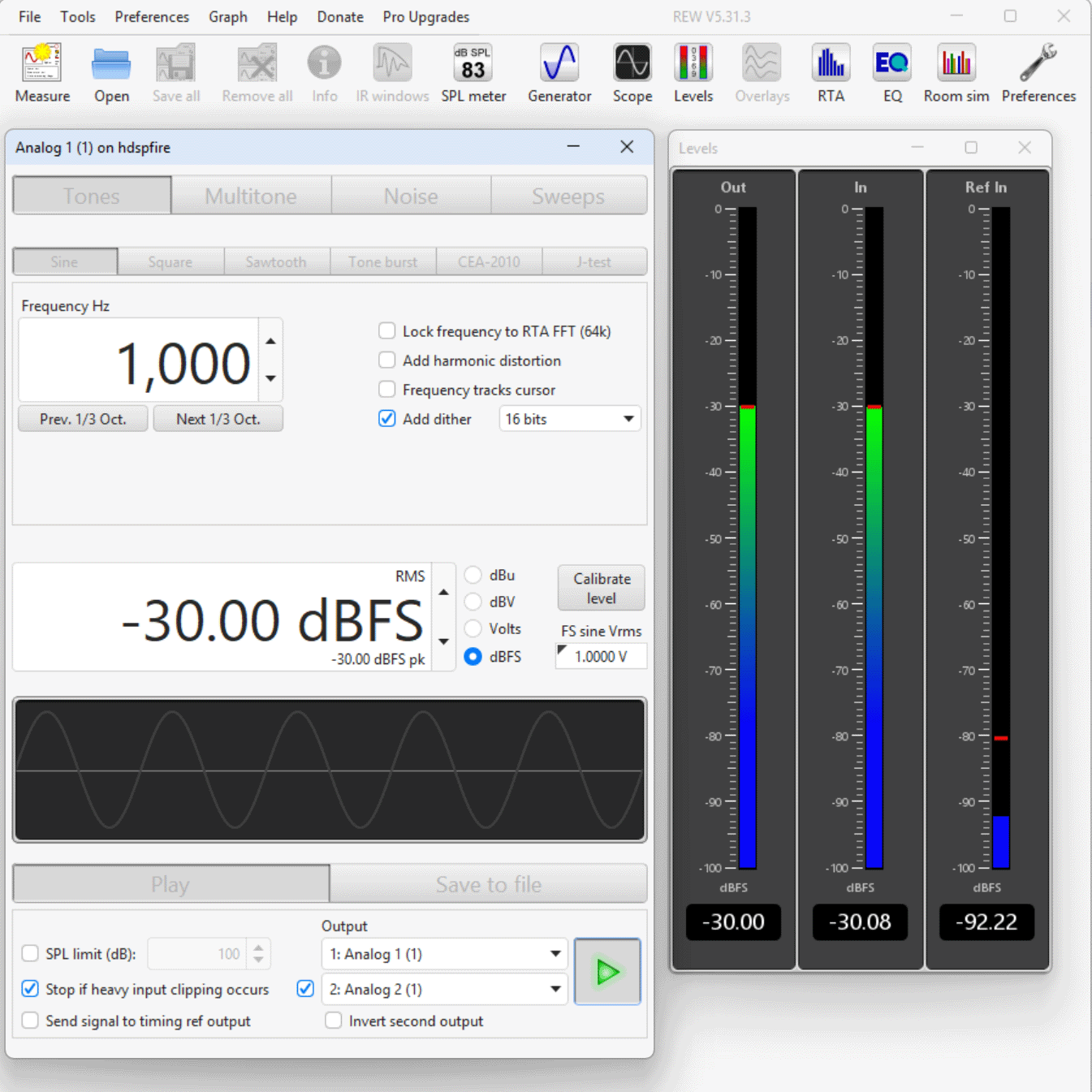
In REW open the Generator module and set it to:
- Tones, Sine
- Frequency Hz: 1000
- -30dBFS
Push the green play button and open REW's Levels module. Make sure the signal is coming back into the input at or very close to -30dBFS. This is unity gain. If you are not getting unity gain, check your connections.
Calibrate Gain top
Set SW1 to 2:1 and SW2 to FAST.
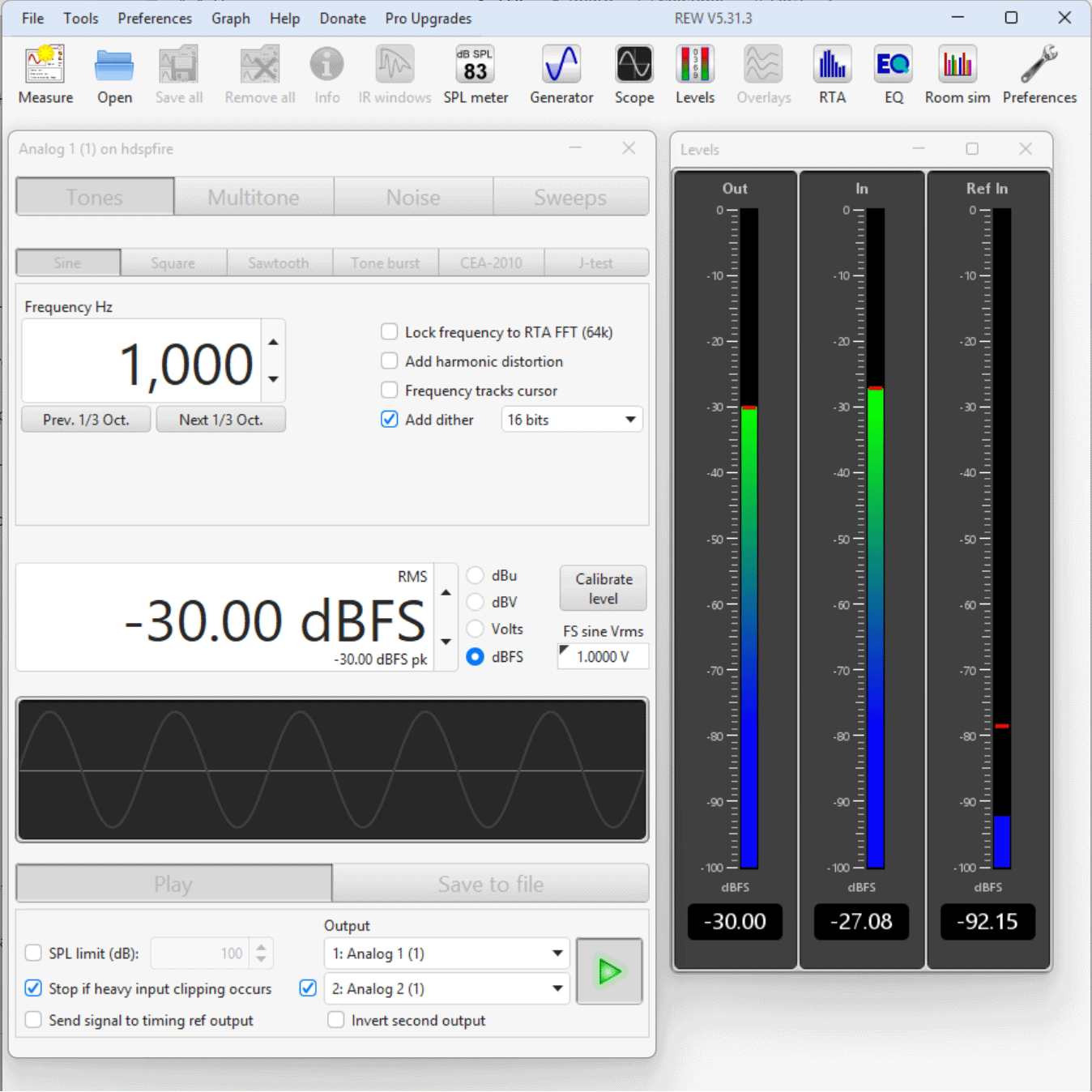
Engage the SS VCA and set the Colour knob completely counter-clockwise. The level on the In meter in REW should change slightly when you engage the SS VCA.
Adjust VR1 on the SS VCA until the In level is -27dBFS (3dB gain). Your SS VCA is now calibrated.
Finished! top
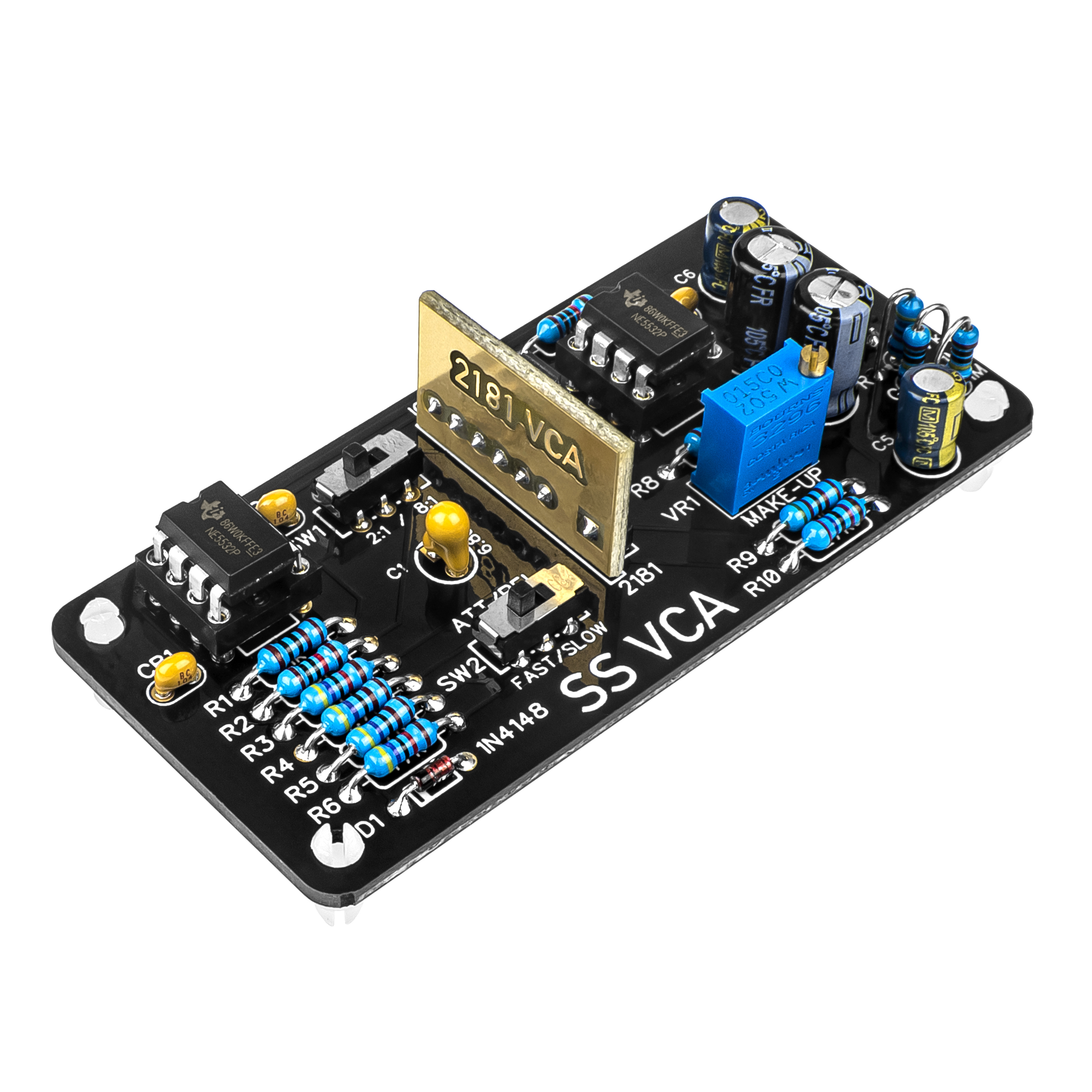
Congrats on completing your SS VCA. To begin using it, simply plug it into a host such as the Colour Palette and turn the Colour knob to begin compressing.
The SS VCA has a fixed threshold. Therefore, the Colour knob on the host controls the amount of compression by controlling the input level to the SS VCA.
The ratio and attack/release time constants can be set via the switches SW1 and SW2. The ratios are 2:1 and 8:1. The attack/release times are 2ms/20ms for FAST and 20ms/200ms for SLOW.
Congratulations on finishing your build!
Have general feedback or a question? Get in touch.
Missing a part or need replacements? Submit a Parts Request.
Something not working right? Don't worry, we have plenty of troubleshooting resources to help you figure it out.
If you've worked through the troubleshooting guides above and are still stuck, reach out through the troubleshooting support form.
